Everything it does
The whole feature set,
at a glance.
A lecture-video reading workspace — every clean slide, note, highlight, screenshot, and AI answer stays pinned to the exact moment it came from. Bring your own model; it's yours to keep.
Start here
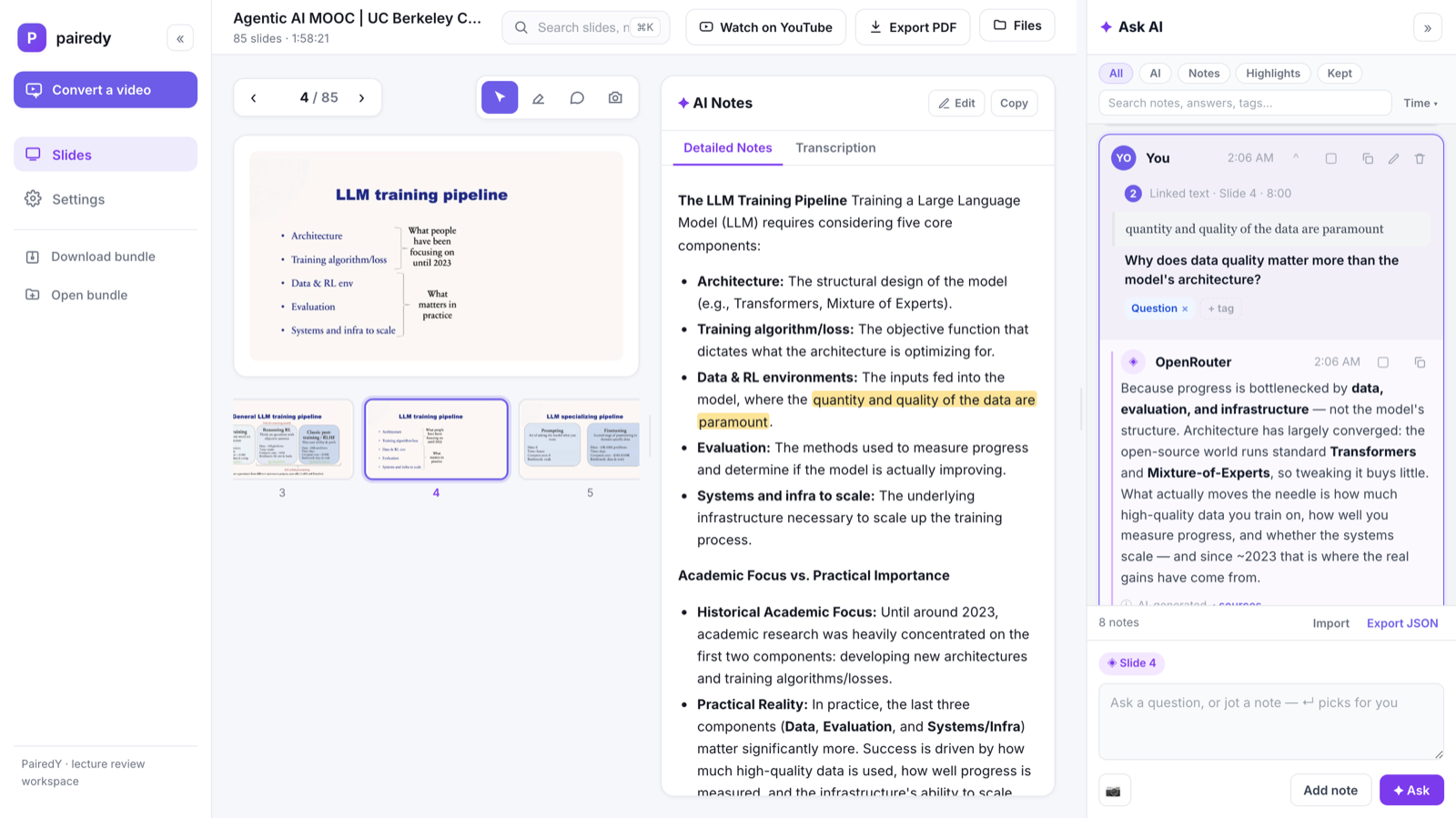
Paste a link. Come back to a deck.
Give PairedY a YouTube URL (or a file you already have). It finds the slides, cleans them, reads them with a vision model, and pairs each one to what the speaker actually said — on our workers, while you keep working. No login to start.
Reads the board and the room
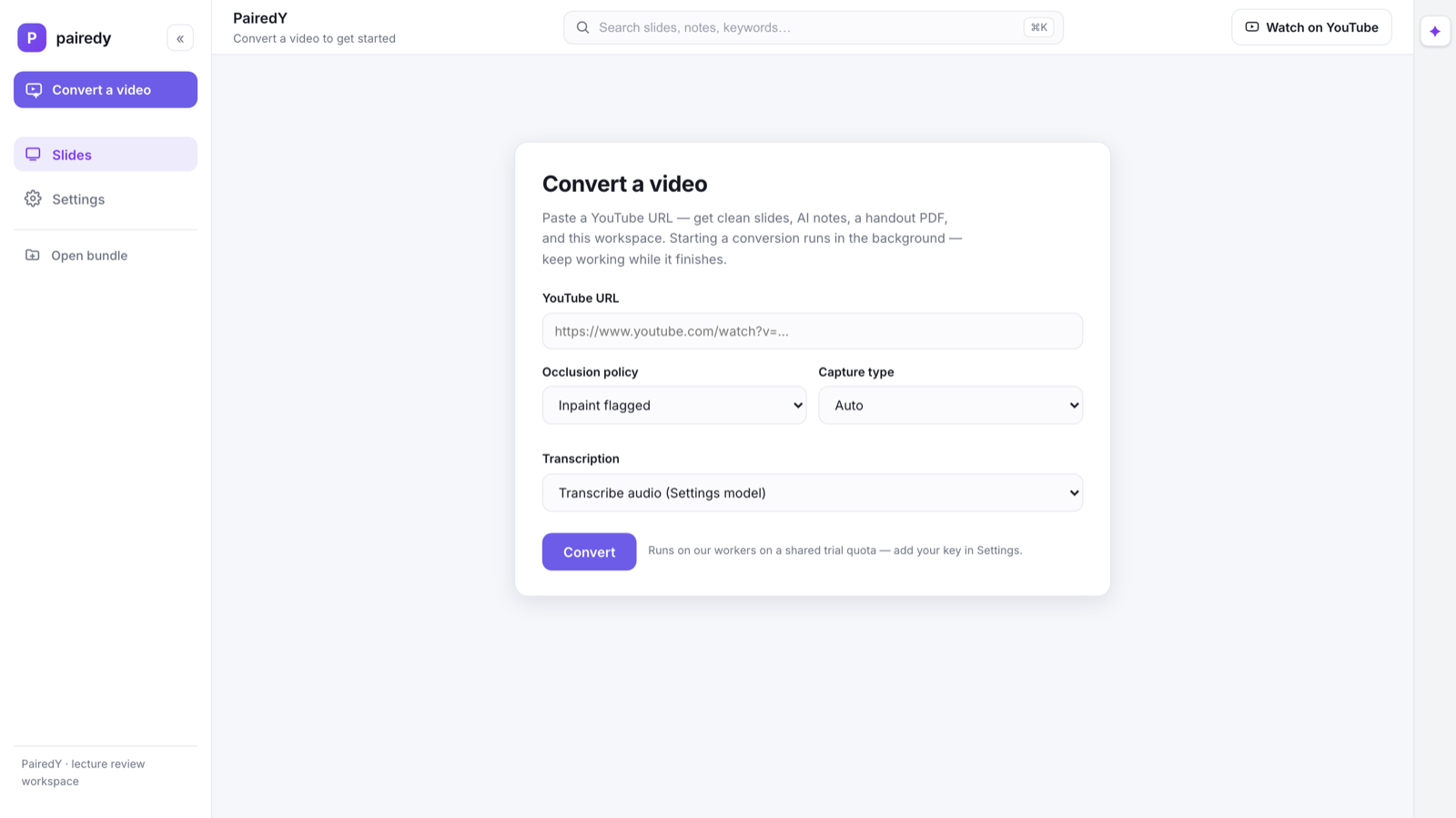
Every slide, paired with the narration.
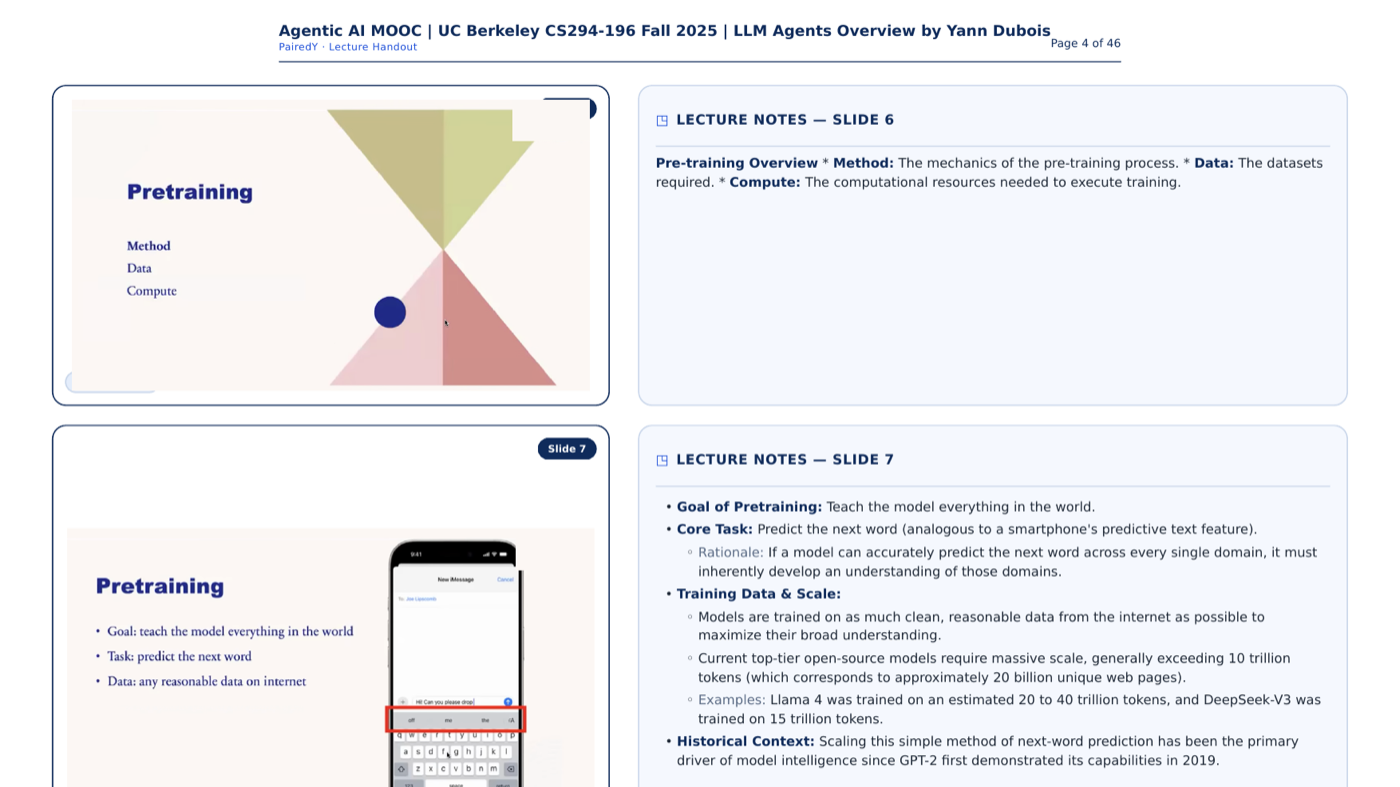
Per-slide OCR of text, equations, tables, and figures, fused with the timestamped transcript. Each slide carries clean Detailed Notes and the raw Transcription — with rendered math and Markdown, and every line keeps the second it came from.
Screenshot & ask
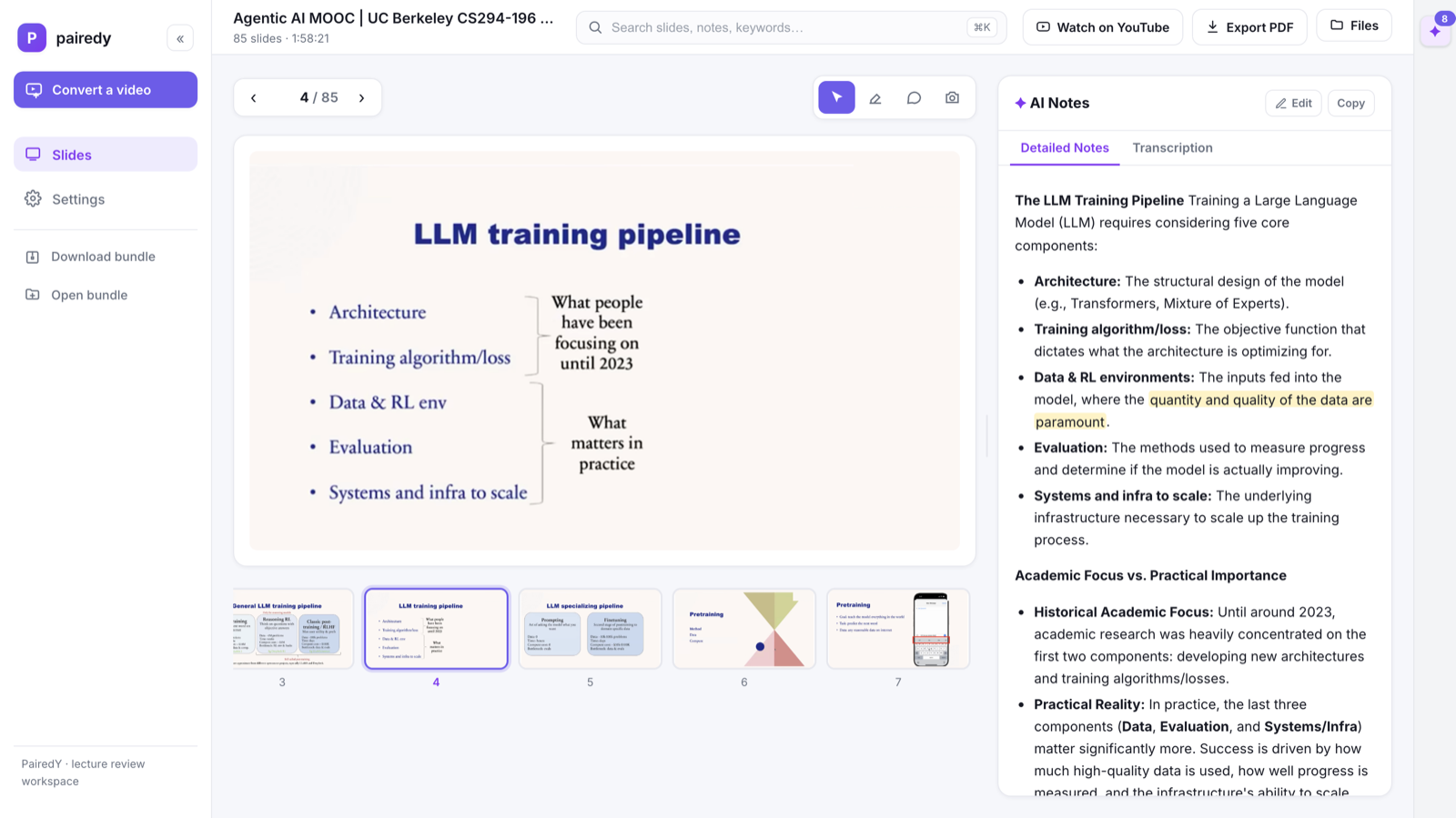
Box a figure. Ask about that.
Screenshot any region of a slide — a chart, an equation, a diagram — and it's pinned back to that exact spot with a numbered marker. Ask about it and the answer is grounded in what you boxed, not the whole slide.
The intent router
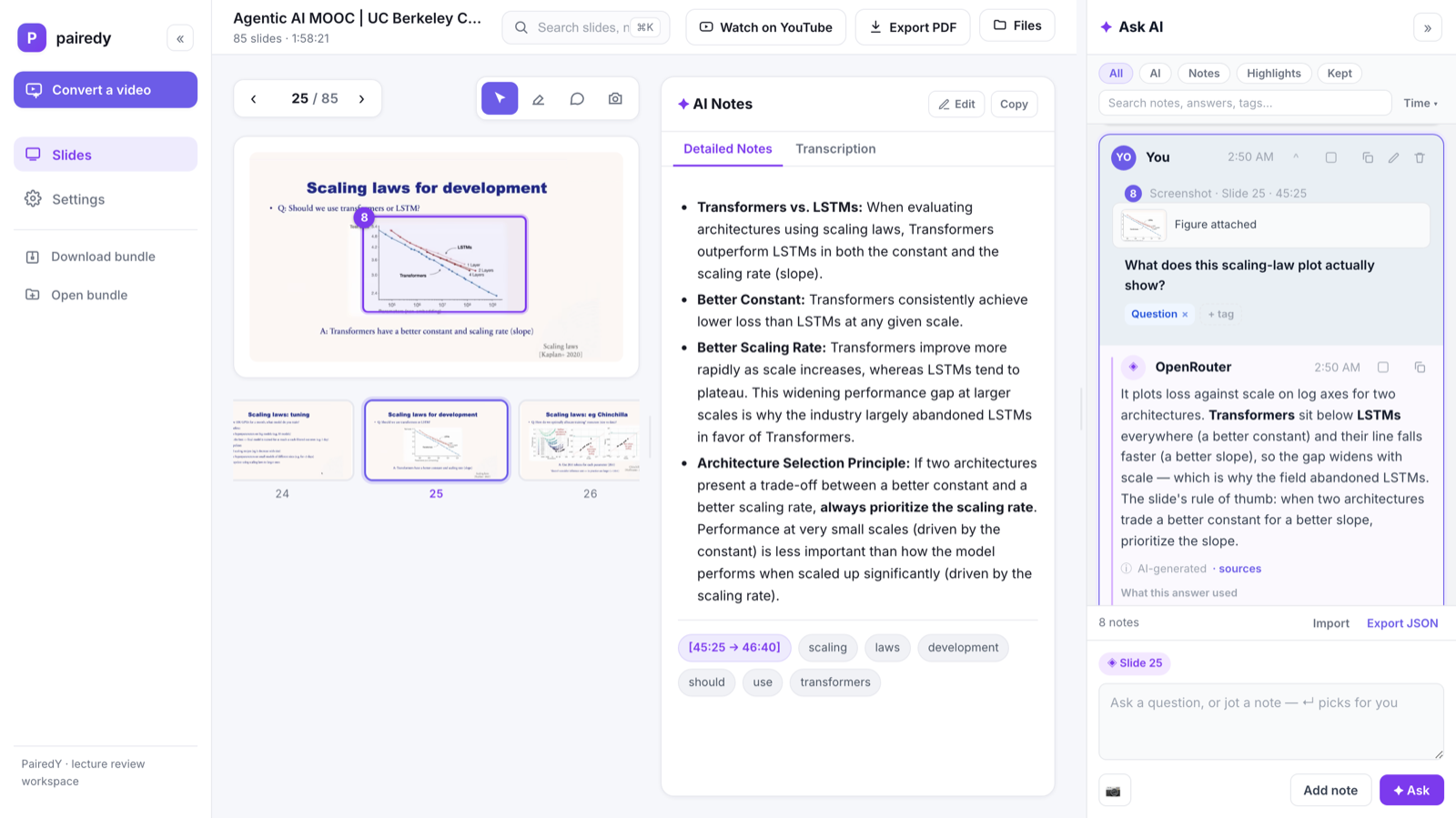
One composer. It decides — and it all stacks here.
Type and press Enter: a fast, cheap model routes it to a note (no AI call), an answer, or a visual. Every note, highlight, and answer pins to the slide it came from and stacks in one panel — so a whole deck's worth of thinking lives in one place. Filter by kind or search across it all.
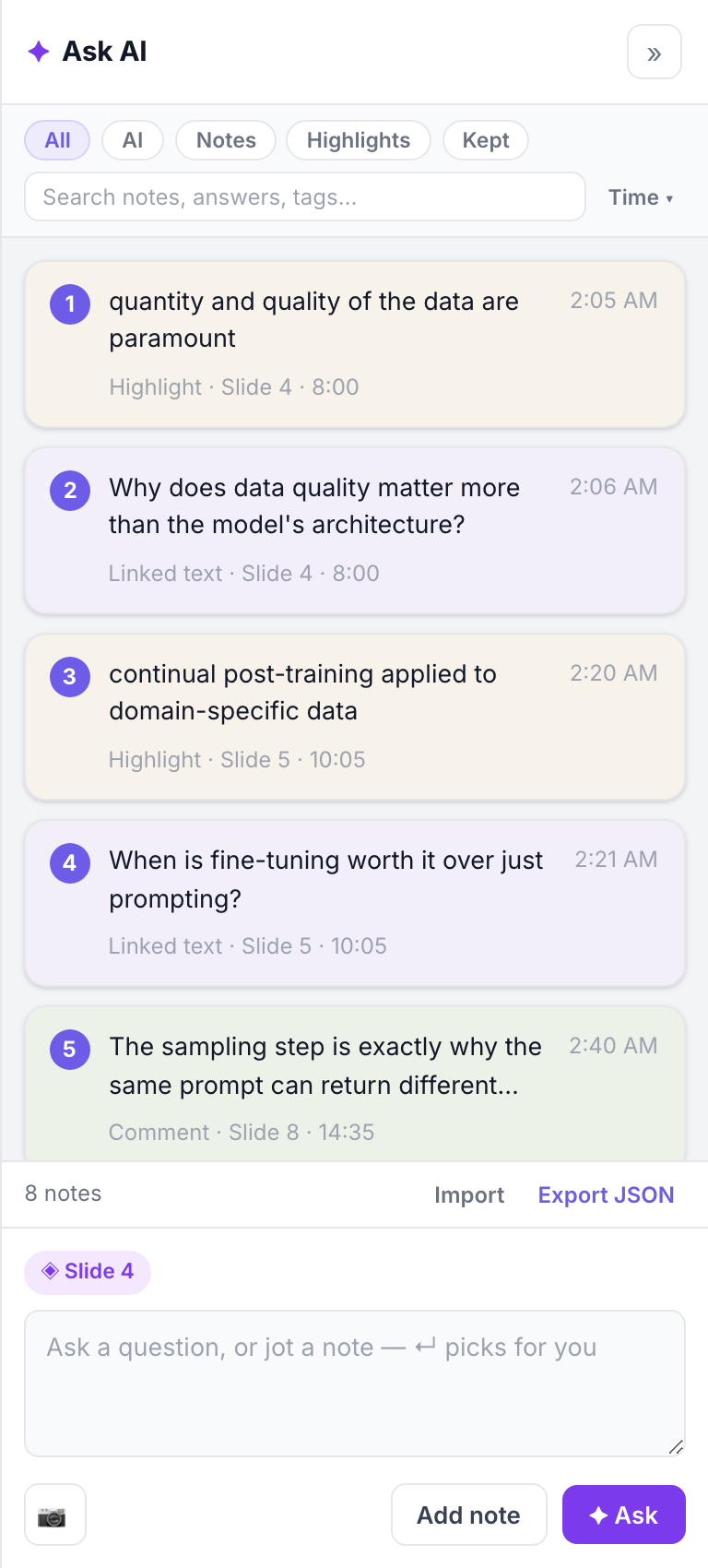
Ask AI
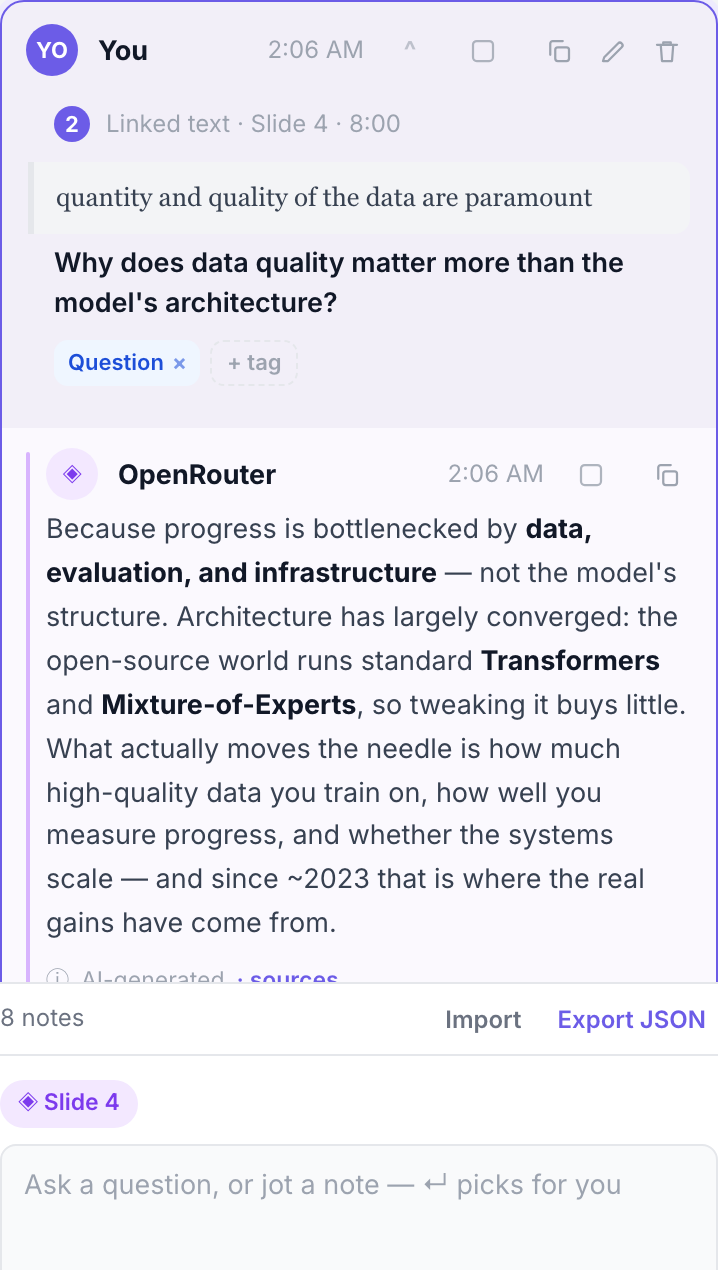
Answers pinned to the slide.
Ask about a selection or the whole slide; the answer is saved as a card linked to that passage, with rendered math & code and a provenance row showing exactly what it used — your selection, the notes, the transcript. Bring your own key; it runs from your browser.
Generate a visual
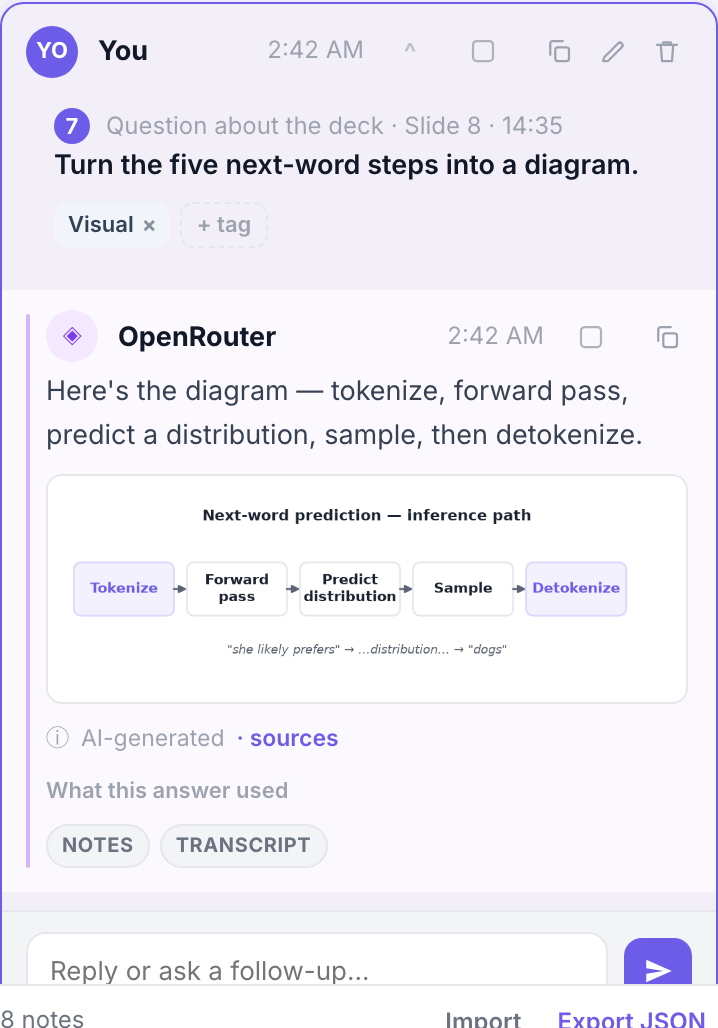
Turn a concept into a picture.
Ask the assistant to draw it. It generates a labeled diagram or an image from the slide's notes or a figure you captured — grounded in the lecture, saved as a card you can revisit.
Yours to keep
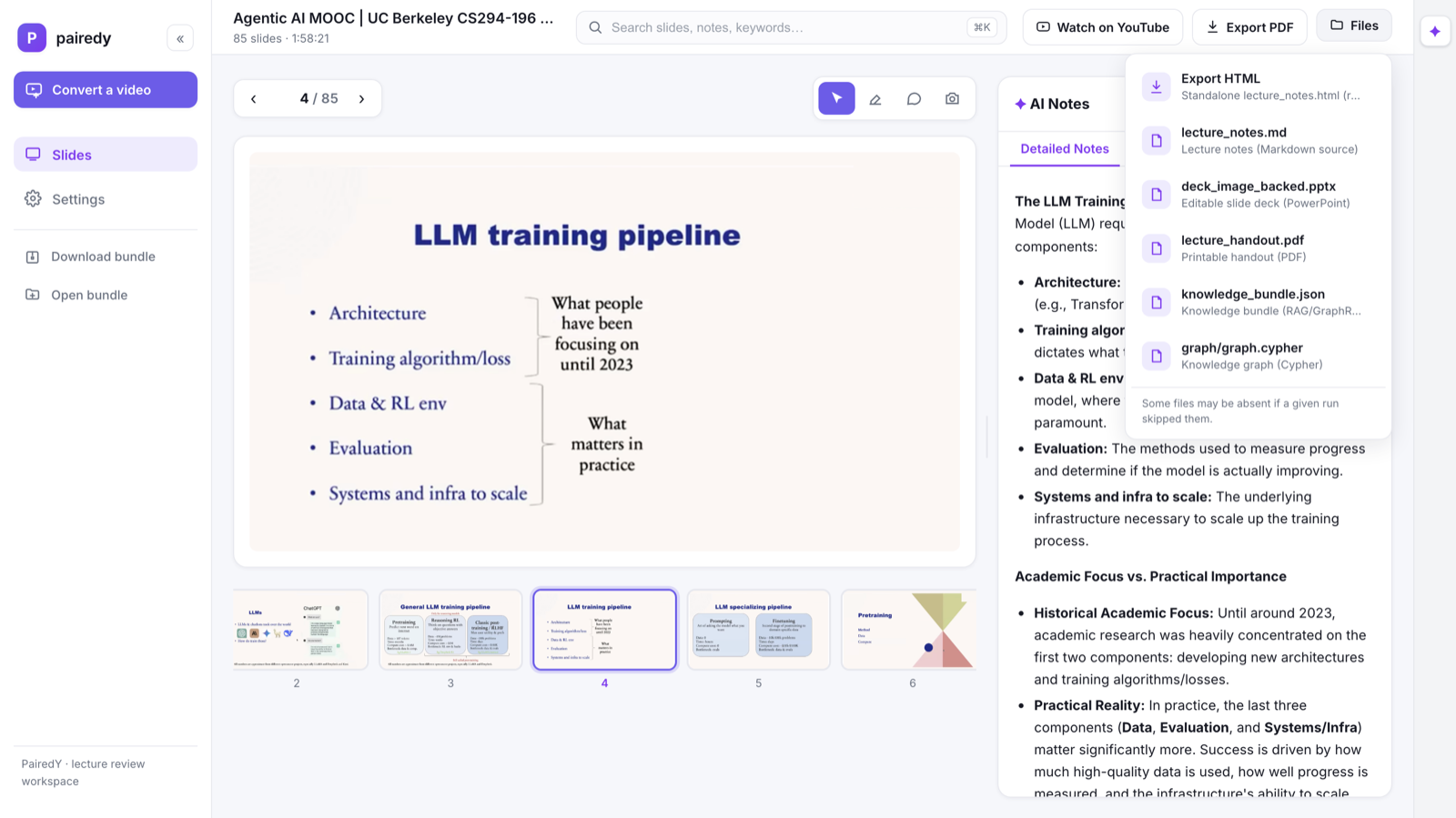
Download it all. Or re-open a shared bundle.
Every run exports to files you own: clean slides, an editable PPTX with speaker notes, a printable handout PDF, Markdown, notes JSON, and a portable knowledge bundle. Grab the whole bundle in one click — or open a bundle someone sent you and pick up where they left off.
Bring your own model
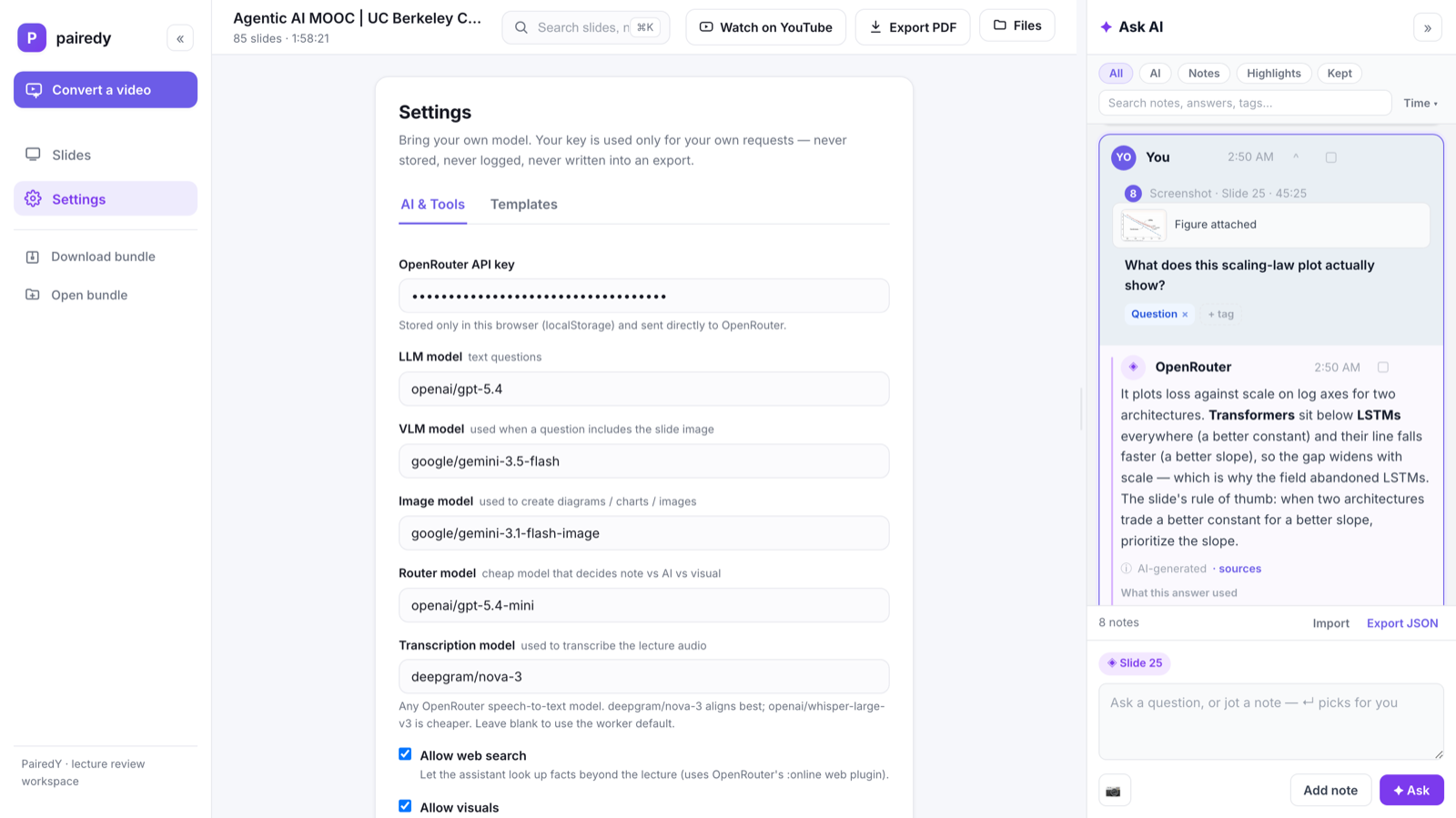
Your model, your key.
Any OpenAI-compatible endpoint or OpenRouter powers the language, vision, image, and router steps — each pickable in Settings. Your key stays in your browser and is sent per request, never saved on a server. Toggle web search and visuals on or off.
Editable prompts
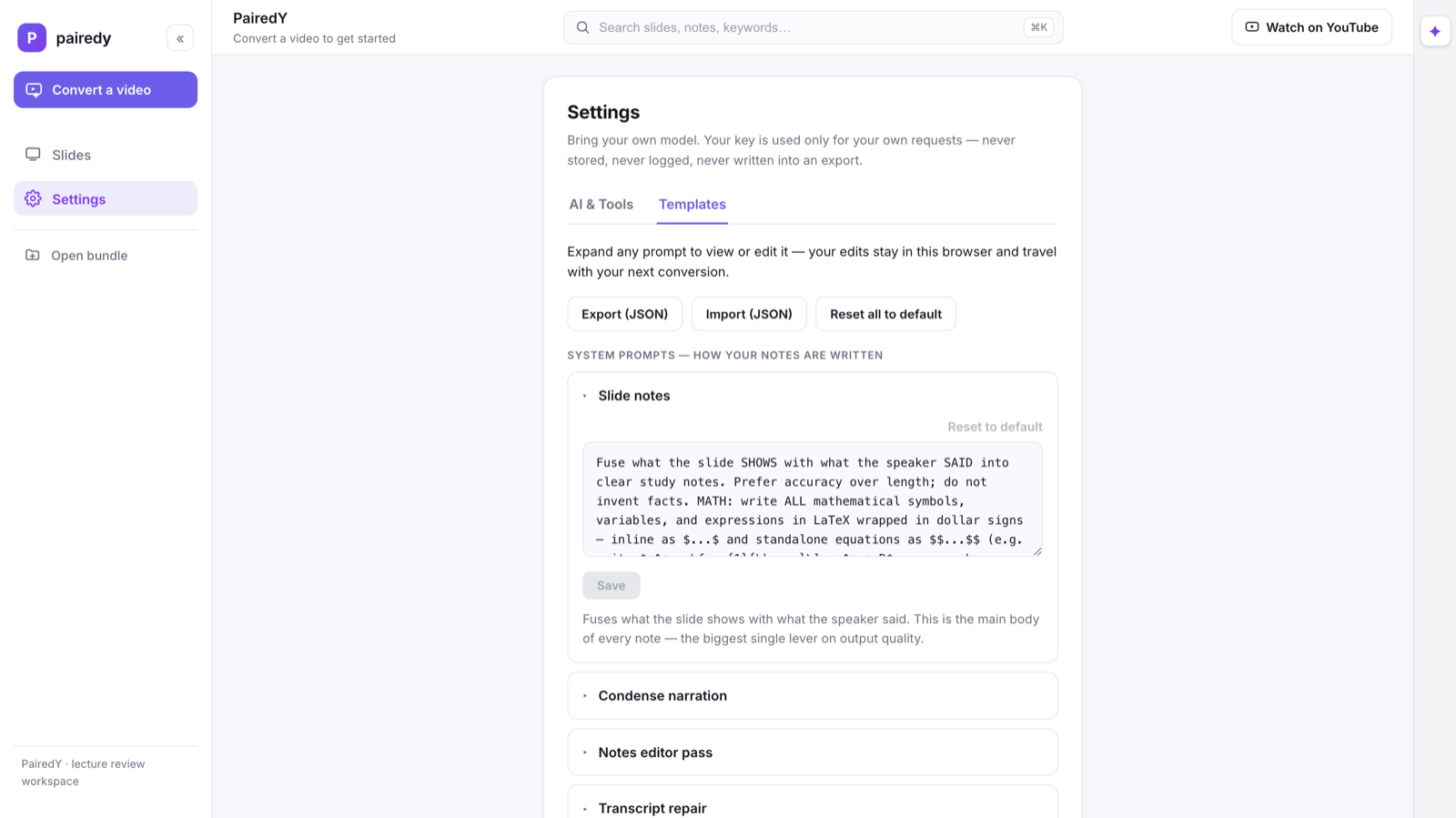
Tune every prompt.
Every instruction the pipeline sends a model — slide notes, condensing the narration, concept extraction, the handout pass — is editable under Settings → Templates. Restyle the voice, then export or import your whole set as JSON. Your edits travel with the next conversion.
The full list
And everything else
Grouped — every one of these ships today.
Convert
- YouTube URL or file upload
- Occlusion policy — inpaint or keep
- Auto / board / slide capture
- Choose the transcription model
- Non-blocking — convert while you work
Clean slides
- Boundary detection, crop & deskew
- De-occlusion from real pixels
- Decks and whiteboards alike
- Duplicate slide removal
- Illumination normalization
Notes & transcript
- Per-slide Detailed Notes (Markdown)
- Rendered LaTeX & code
- Full timestamped Transcription
- Edit notes or transcript in place
- Jump from any line to the video
Annotating
- Highlight text — yellow or blue
- Screenshot a region of the slide
- Numbered pins on the slide
- Point comments & reactions
- Selection popover: Highlight · Note · Ask AI
Ask AI & router
- Intent router — note vs AI vs visual
- Enter auto-routes; @ai forces AI
- Ask a selection, a figure, or the slide
- Generate diagrams, charts & images
- Web search when you allow it
Provenance
- Every answer shows what it used
- Selection · notes · transcript · figure
- Source-linked back to the slide
- Rendered math, Markdown & code
- Reply / follow-up in-thread
Notes panel
- Every note pinned to its slide
- Stacked across the whole deck
- Filters: all · AI · notes · highlights · kept
- Search notes, answers & tags
- Compact ↔ expanded cards
Library
- Every converted deck, one click away
- Recents of past conversions
- Delete a deck in one confirmed click
- Open another run (.zip or .html)
- Search slides, notes & keywords
Exports you own
- Clean slide images
- Editable PPTX with speaker notes
- Printable handout PDF
- Notes as portable JSON
- Knowledge bundle (named after the video)
Model & prompts
- OpenRouter or OpenAI-compatible
- Separate LLM / VLM / image / router models
- Bring your own key (browser-only)
- Editable prompt templates
- Export / import / reset prompts
Privacy & open
- Key never saved on our servers
- Notes stay in your browser
- No login to start
- MIT-licensed & self-hostable
- Exports are yours to keep
Try it — no signup, no install.
Conversion runs on our workers — no key needed to start. Bring your own model when you want to ask questions of the result.